SureFlap Connect Not Working? 7 Common Problems & How to Fix Them
Before You Start: A Quick Check
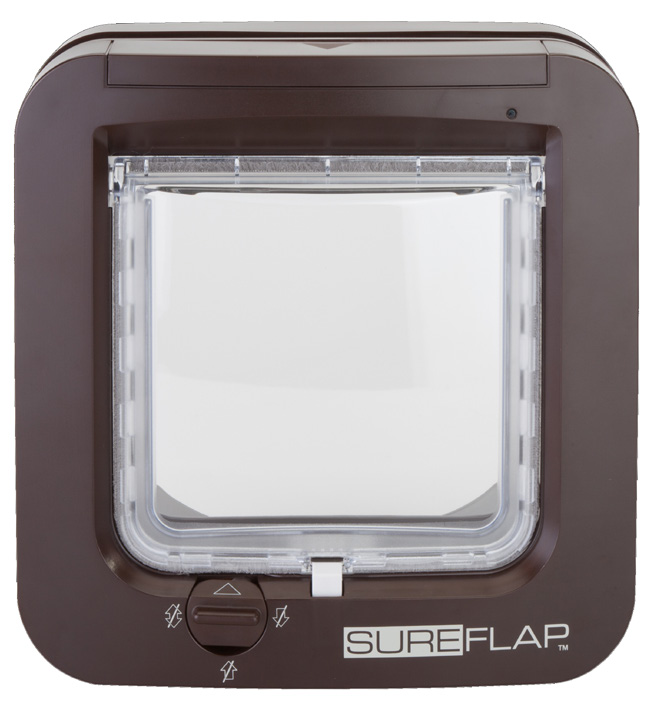
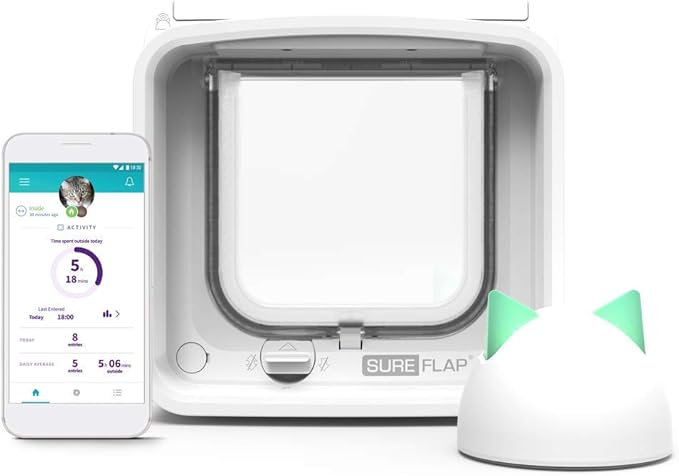
The SureFlap Connect looks like the standard SureFlap Microchip Cat Flap but adds three things: a DualScan reader that reads the chip on the way in AND out, a Sure Petcare Hub that plugs into your router, and the app. That's three more links in the chain — start by working out which link broke:
- Does the flap itself still click when your cat approaches? If yes, the electronics are fine and it's a hub/app problem
- Is the hub LED solid? A flashing or dark hub means a Wi-Fi or pairing problem
- Fit 4 fresh AA alkaline batteries — fixes most flap-side faults outright
Match the symptom below to the right fix.
Problem 1: Dead or Weak Batteries
The Connect runs on 4 x AA batteries, and slightly faster than the standard flap because of the radio link to the hub.
Symptoms:
• Flap doesn't respond when your cat approaches
• App shows the flap as offline or battery low
• Works intermittently — fine in the morning, dead by evening
The fix:
• Use 4 fresh AA alkaline batteries (Duracell, Energizer or equivalent) — never rechargeable NiMH cells
• Replace all four at once
• Clean any corrosion in the compartment with a cotton bud and vinegar
• After a battery change, give the flap 2 minutes to rejoin the hub before assuming it's broken
Expect 6–12 months with one cat, 3–6 with several.
Need fresh batteries? Check the size printed on your flap first.
Problem 2: Your Cat's Chip Isn't Registered (Or Got Deleted)
Registration lives in the flap's memory, and it can be lost — a deep battery drain, a factory reset, or deleting the pet from the app by mistake.
Symptoms:
• Flap works in manual mode but not in chip mode
• Your cat sits at the flap but it never unlocks
• The app shows the pet but the flap ignores them
The fix:
• Press the memory button on the flap once — the LED flashes
• Hold your cat at the flap from the outside so the chip passes the scanner
• The LED flashes green to confirm
• If you manage pets in the app, check the pet wasn't archived or removed — deleting a pet in the app removes their registration
If learning mode won't start, fit fresh batteries first.
Problem 3: The DualScan Reader Won't Read on Exit
DualScan reads the chip twice — once under the tunnel on entry and again on the way out — so one cat can be kept in while another comes and goes. The under-tunnel reader is the part owners forget to clean.
Symptoms:
• Cat gets IN fine but the flap won't let them OUT (or the reverse)
• Works when the tunnel is bone dry, fails on wet days
• One cat is affected and the other isn't
The fix:
• Clean the under-tunnel sensors — small lenses on the underside of the tunnel where fur, dust and dried mud collect. A slightly damp microfibre cloth or cotton bud, gently
• Clean the top scanner window too while you're there
• Check the exit lock setting in the app — a 'keep in' curfew or manual mode for that specific cat looks exactly like a failed exit read
• Long-haired cats: fur dragging through the tunnel smears the lenses fast. Check monthly
If your cat doesn't need indoor/outdoor rules, DualScan problems don't affect basic entry — the entry reader is the same as the standard flap's.
Only buy a collar tag if your flap's instructions confirm it supports that specific tag.
Check compatible tags on AmazonProblem 4: The Hub Is Offline or Won't Pair
The Hub connects to your router and talks to the flap over a low-power radio link. Most hub faults are placement or router changes.
Symptoms:
• App says 'offline' but the flap works normally
• Hub LED flashing or dark
• Stopped working after a new router or a Wi-Fi password change
The fix:
• Check the hub is plugged into the router (or a working port on it) with the supplied cable — its LED should be solid
• Restart the hub: unplug 30 seconds, plug back in, wait 2 minutes
• Restart the router if the hub still won't connect
• Re-pair if needed: hold the hub's button until it flashes, then follow the app's pairing steps
• Move the hub closer to the flap — thick walls, foil-backed insulation and microwaves interfere with the 2.4 GHz signal. Within roughly 10 metres of the flap through one wall is a good rule of thumb
The flap keeps working as a normal microchip flap even when the hub is offline — you only lose the app features.
Problem 5: App or Firmware Issues
The flap, hub and app all run firmware, and they update at different times. A mismatch usually shows up as features vanishing or syncing failing.
Symptoms:
• Curfew doesn't activate
• Notifications stop arriving
• Pet events (in/out history) stop syncing
• App crashes or shows stale data
The fix:
• Update the app in your phone's app store — old versions lose compatibility after cloud updates
• Check firmware in the app: device settings show the current version and any pending update. Keep the flap close to the hub during an update
• Check Sure Petcare's service status — their cloud has occasional maintenance windows. Outages show as 'offline' even though everything in the house works
• Re-pair the flap to the hub as a last resort: hold the flap's connect button, then re-pair through the app. Registered cats are kept, but allow 10 minutes for everything to resync
Problem 6: Lock Modes Conflicting (Manual vs App)
The Connect has a manual 4-way lock on the flap frame AND lock controls in the app — and either can override the other. This catches a lot of owners out.
Symptoms:
• Flap locked even though the app says open
• Curfew set to 'open' but the flap stays shut
• One cat locked in but others come and go
The fix:
• Check the manual lock dial on the flap body first — in/out/both/locked. It physically overrides everything else
• Check per-pet locks in the app: the Connect can lock individual cats in or out. Open the pet's profile and check their lock status
• Check curfews: a curfew for one pet looks like a broken flap for that pet only
• After changing anything in the app, give the flap up to a minute to receive the new state
Problem 7: Hardware Failure
Rare — but motors fail, scanner circuits degrade and water gets in eventually.
Symptoms:
• No LED activity at all on fresh batteries
• Motor clicks but the lock doesn't move
• Water inside the battery compartment
• Cracked casing or scanner window
The fix:
• Check the warranty — 3 years from Sure Petcare, and your Amazon order confirmation is your proof of purchase
• Contact Sure Petcare UK support — they typically replace the unit rather than repair it
• Replacing? Compare the SureFlap Connect with the standard SureFlap Microchip Cat Flap — if you never use the app, the standard model does the same job for less. For large cats, the Pet Door Connect is the bigger-frame version
• If it's fitted in glass, remember existing glass can't be cut — a new toughened panel is required. Request a free fitting quote
If it really needs replacing
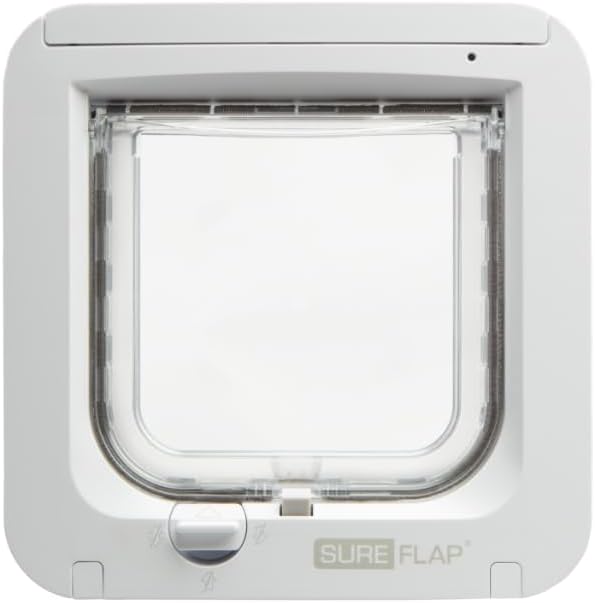
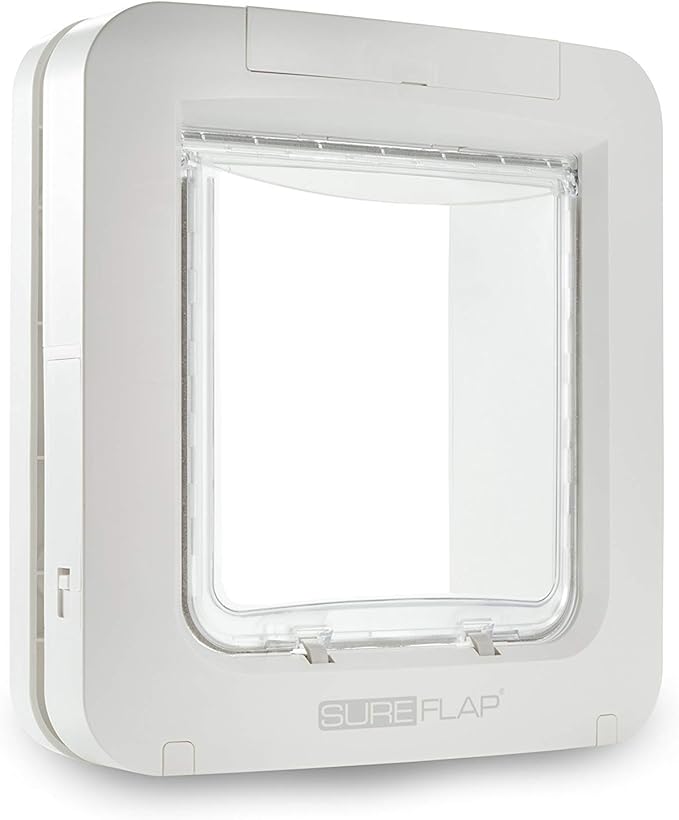
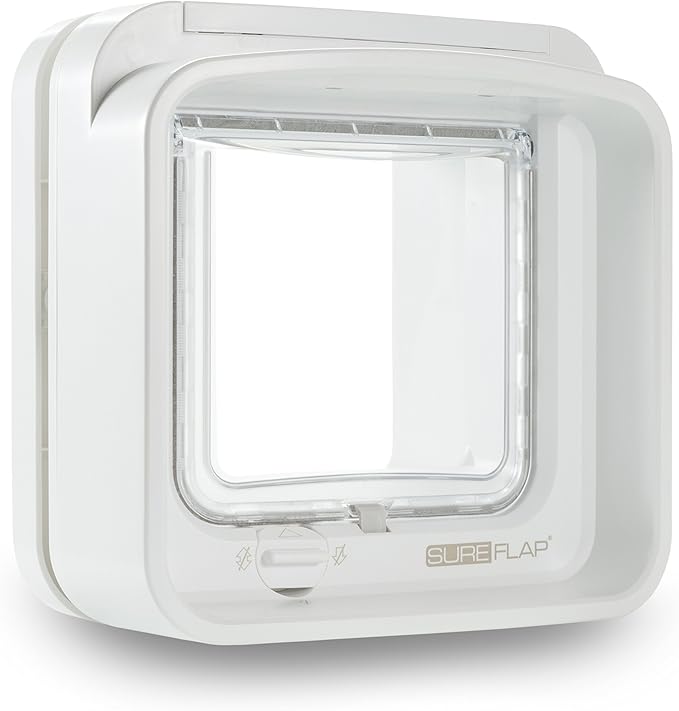
Check the warranty and measure your existing opening first. The Pet Door is the larger model; DualScan adds exit control for multi-cat homes; Connect adds app control (Pet Door Connect is its larger version).
Still Stuck?
If you've worked through all seven, the fault is usually installation rather than product — wrong fitting height for the chip position, over-tightened screws warping the frame, or metal in the door detuning the reader.
More help:
• Microchip cat flap not working? The general 7-fix guide
• SureFlap Pet Door not working? 7 fixes
• Best microchip cat flaps, ranked by a fitter
We fit and repair SureFlap Connect flaps across Manchester, Cheshire, Liverpool, Wirral, Lancashire, North Wales, Staffordshire and Yorkshire — send us a photo and the symptoms.
As an Amazon Associate we earn from qualifying purchases at no extra cost to you.